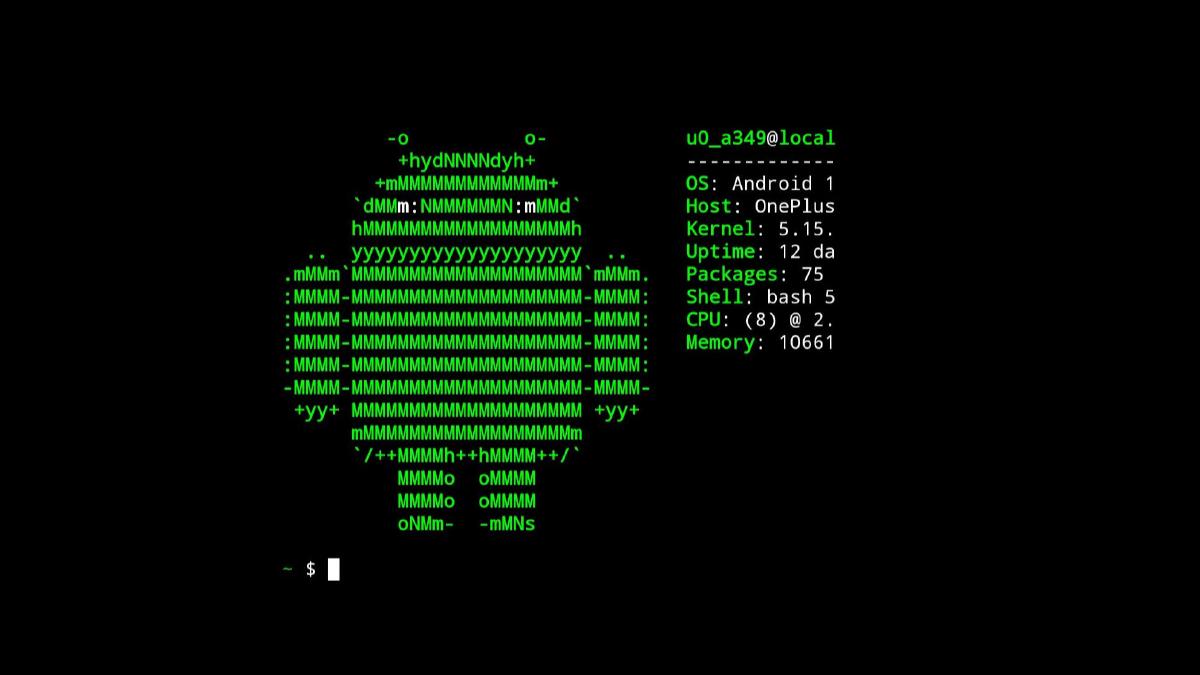

I recently needed to travel for a weekend and didn’t feel like bringing my laptop. Having almost finished writing Part 2 of the Mobstr Logbook, I didn’t want to delay publishing it until I could return home to my computer. As a result, I had to figure out a way to do it from my phone.
This website is hosted on GitHub pages and uses the Hugo static website generator. I add new content to it by creating a markdown file in a GitHub repo and pushing the changes. Last-minute research on the way to the airport showed that I can use the Termux terminal emulator to recreate the same workflow on my Andoird phone.
Here’s how I set it up.
Apps Needed#
Download Termux from the Play Store. You will also need a markdown editor, for example Zettel Notes, but there are numerous other apps available.
Setup GitHub#
First, create an SSH key for GitHub. Open Termux and run the following commands:
pkg update
pkg upgrade
pkg install git
Installing git should also install openssh. Generate a new pair of id_ed25519 keys by running
ssh-keygenand save the keys to the ~/.ssh directory. Start the SSH agent:
sv-enable ssh-agentAdd your name and e-mail to Git:
git config --global user.name "Your Name"
git config --global user.email "your@email.com"
Add the public key to GitHub and test your connection by running
ssh -T git@github.comOnce GitHub is set up, you can clone your website’s repository in the home directory of the Termux environment:
git clone git@github.com:<user>/<repo>.gitInstall Hugo#
Install the Hugo package by running
pkg install hugoBy default, the Termux environment is inaccessible from the rest of the Android file system, so the markdown editor will not be able to access it. Run this command to allow access:
termux-setup-storageSetup Markdown Editor#
Make sure the markdown editor you’re using has access to hidden storage. If you’re using Zettel Notes, open the left panel and add a Repository. Give it a name, and click on the folder icon to open the file manager. In the file manager’s left panel you should see Termux. Open it, and select your cloned project folder.
That’s it! Now you can edit your blog and preview it locally the same way you would on a PC. Simply run
hugo serverand visit http://localhost:1313 in your mobile browser.
If you can get over the uncomfortable feeling of doing a “laptop task” on a phone, you can now publish to your Hugo website on-the-go.